Redesigning user management for a cybersecurity platform at scale.
PlexTrac is an industry-leading penetration testing and reporting platform for red, blue, and purple team collaboration. Over the course of 18 months I led the end-to-end redesign and expansion of its user management system across multiple efforts from the user list landing page to entirely new product features including user details, user groups, and an audit log through an extensive user research-driven workflow.
Understanding the problem.
Research began in December 2022 with a broad audit of the existing UI and internal brainstorming based on accumulated client feedback. This was followed by multiple rounds of user interviews across three customer segments: SSPs, MSSPs, and Enterprise, to hear firsthand about their existing pain points, frustrations, and desired features. A second, more focused round of interviews was conducted in Q3 2023 as scope expanded to include additional features.
Customer Segments

Smaller, focused firms helping clients with specific aspects of their security infrastructure. Prioritized an intuitive overall experience above all else.

Larger firms offering a full suite of managed security services. Vocal about the need for user groups and bulk authorization workflows.

Large corporations with internal security operations. Focused on RBAC improvements, advanced permissions, and scalable user setup workflows.
Identified Themes
- Implement bulk actions and bulk authorizations
- Add workflow for editing existing user details such as names and email
- Improve multi-factor authentication management
- Remove or bury the "authorize to all" default group option
"User management has been the biggest pain point we've had with the platform... We have well over a thousand people in there right now, we don't know when people leave, we've got potential security violations, it's just horrible."
— Morgan, SSP
- Authorize users by adding them to a group with shared authorizations
- Groups should manage roles for their members
- Users should belong to a single group
"User group should be something that you are assigned to, and then authorized to multiple projects."
— Joey, MSSP
- More granular default roles out of the box
- Define permissions with tooltips and clear dependencies
- Permissions ordered from least to most permissive
- An "impersonation" or "view as" role for admins
"Like playing a game of whack a mole, which roles give access to do what?"
— Drew, Enterprise
- Integrate authorization into the user creation workflow
- Bulk authorization and streamlined authorization experience
- Prepopulate client role based on tenant-level role assignment
"After I add this person, set role, then I have to go into clients, add them to this client, then the next client... It's time consuming, that's a lot of steps just to add a new user."
— Steve, Enterprise
Rebuilding the foundation of user management from the ground up.
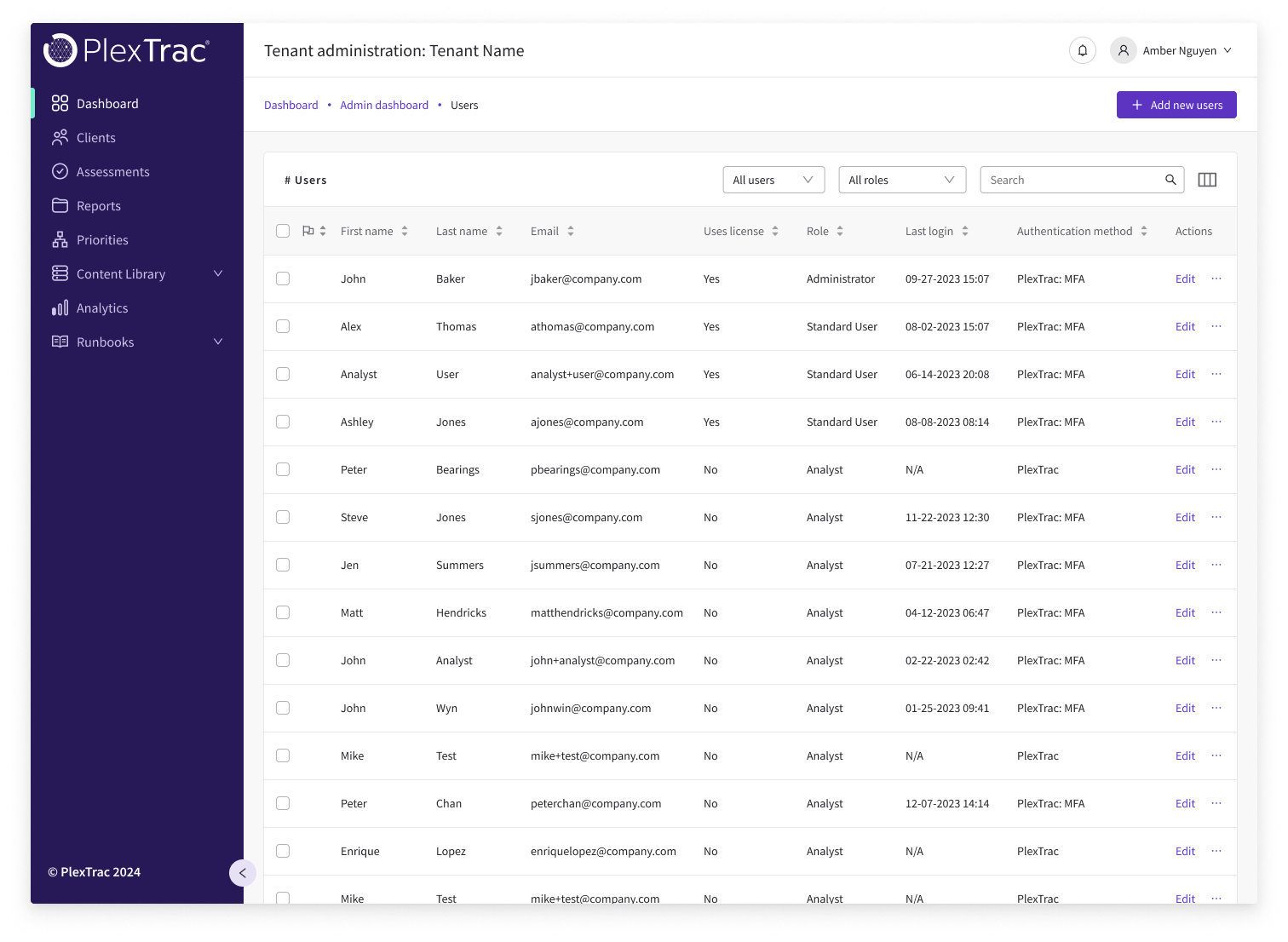
The legacy user list was built by a single developer before PlexTrac had a dedicated design team. It featured horizontal and vertical scrolling, an awkward workflow, and didn't match the design system used elsewhere across the platform. Research made it clear this was the highest-priority pain point. After presenting findings to leadership, interim improvements were approved to address the most critical issues ahead of the larger User Groups initiative.
Goals
- 01Create a scalable, user-friendly, and standardized user management experience to replace the current one.
- 02Simplify the process of assigning user roles, permissions, and client authorizations into a more streamlined experience.
- 03Implement bulk actions to enable administrators to take action on multiple users simultaneously.
- 04Improve multi-factor authentication management with cleaner workflows and new functionality.
Outgoing UI
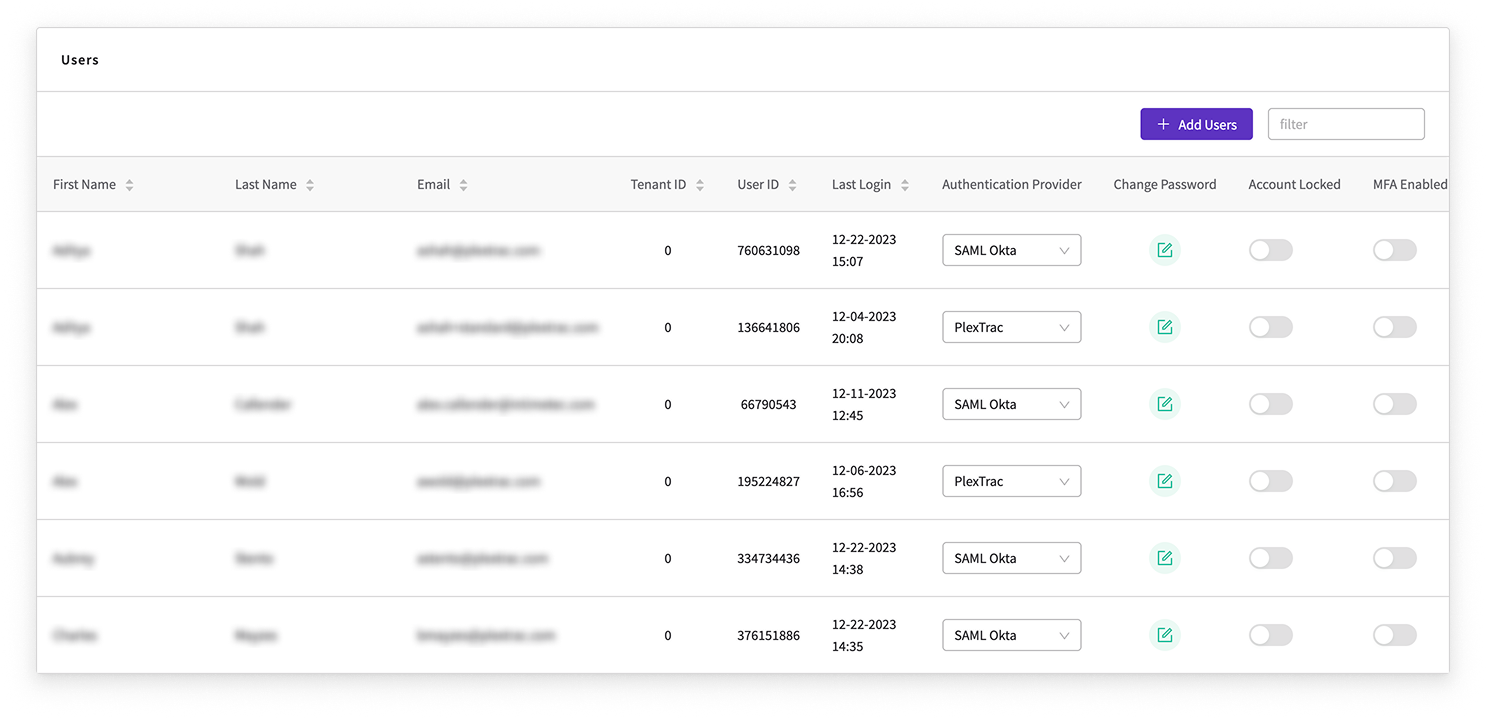
The original interface ran on a large table with both horizontal and vertical scrolling. Actions were buried and inconsistent, the authentication column was disconnected from the rest of the workflow, and the overall visual language was out of step with the rest of the platform.
Detailed Interactions
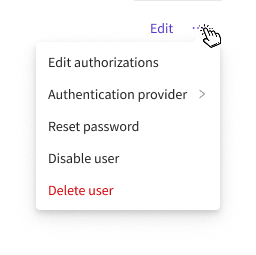
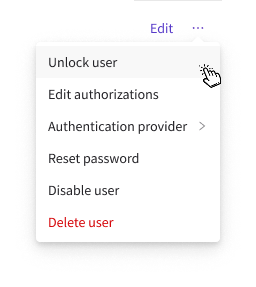
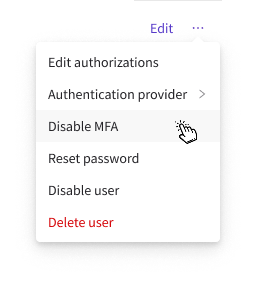
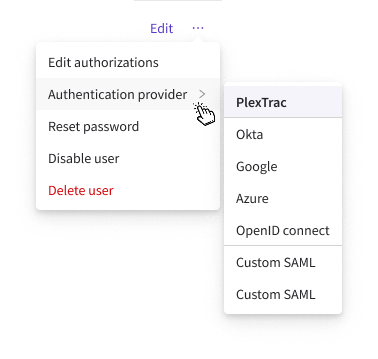
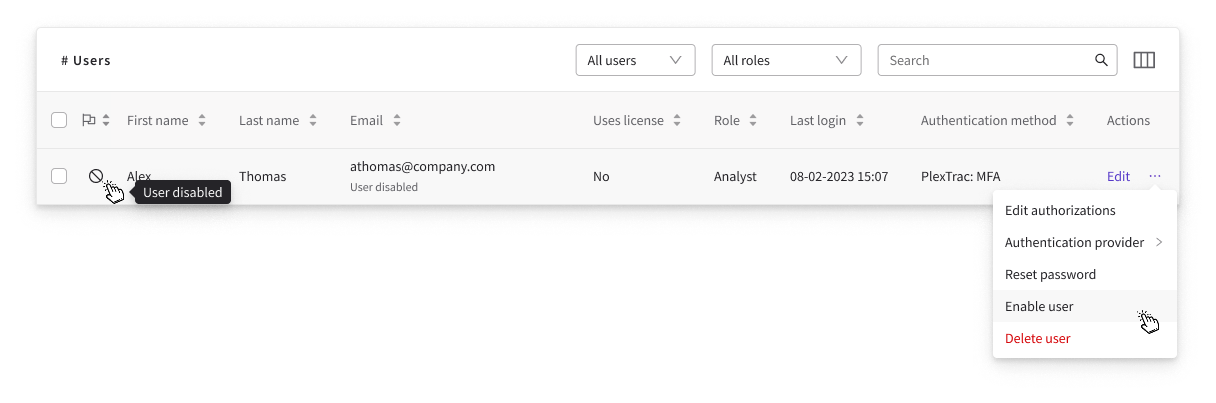
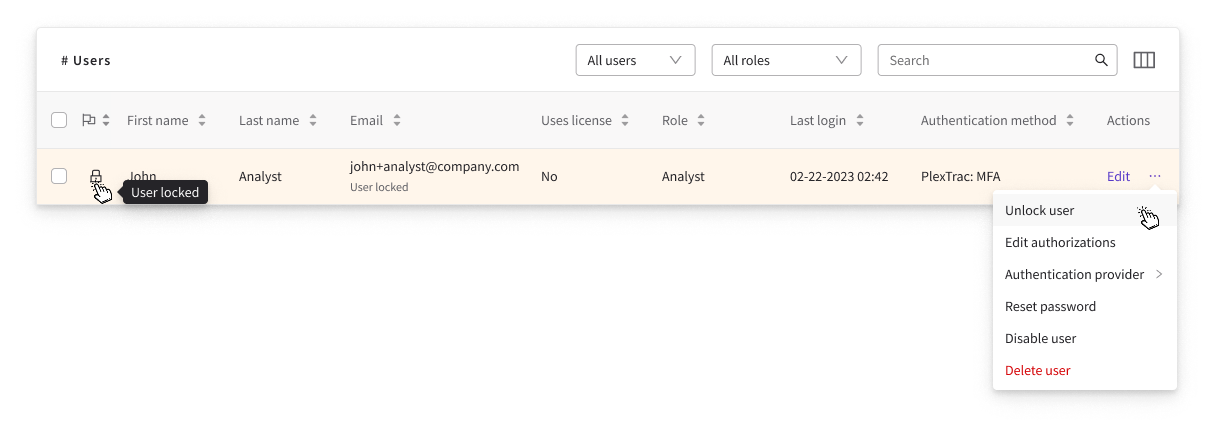
The redesign standardized the table to match platform-wide component styles, introduced a reactive contextual actions menu, and added an authentication method column. Certain actions are now contextual and surface only when relevant to the user's current state (locked, MFA enabled, disabled, etc.).
Bulk Actions
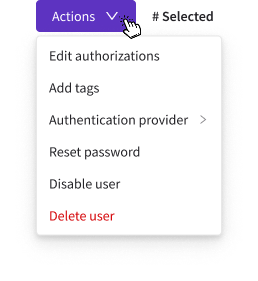
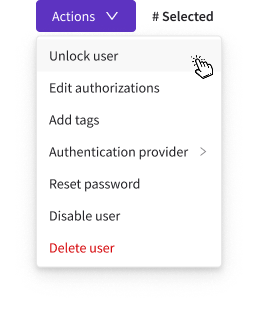
Bulk actions were already a pattern elsewhere in the platform but had never been applied to user management. Selecting multiple users reveals a bulk actions dropdown mirroring the individual user actions: edit authorizations, change authentication, reset password, disable, delete, unlock, and enable, saving administrators significant time on repetitive tasks.
Disable / Enable & Locked Users
Disabled user rows are visually grayed out with a status flag in the user flags column. Locked accounts, triggered after 5 failed login attempts, are highlighted in the table to draw immediate administrator attention. Both states are filterable from the user list.
Multi-Factor Authentication
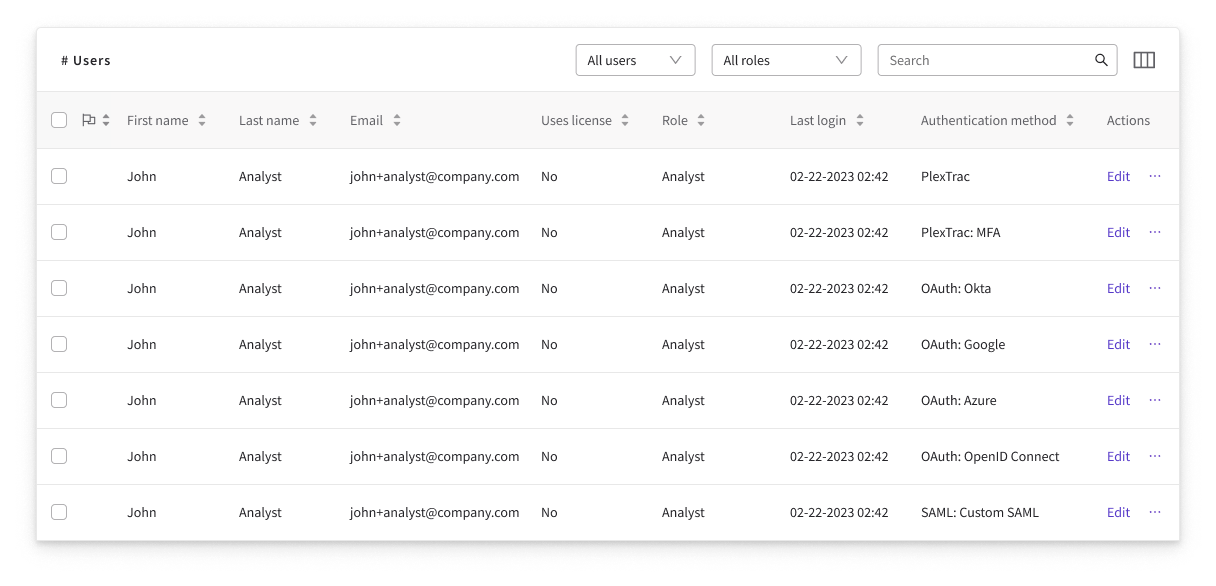
While PlexTrac has always offered multiple methods for organizations to require multi-factor authentication, that functionality was limited in scope and unintuitive to manage. As part of the redesign we cleaned up the workflow for changing a user's authentication method, moving it into the actions column, and added a dedicated authentication method column to the table so an account's setup is visible at a glance. We also gave administrators the ability to disable a user's MFA directly, a highly requested action that previously forced them to turn MFA off for the entire environment just to reset a single user.
Impact & Takeaway
- Replaced the legacy list, the most prominent pain point brought up in research, with a standardized interface consistent with the platform's design system.
- Brought bulk actions to user management for the first time, cutting repetitive per-user work.
- A stable, consistent foundation made every later initiative easier to build.
- Shipping interim fixes first earned stakeholder trust for the bigger work ahead.
- Improving old features can hold as much or more value than net new ones to users.
- Research synthesis, interaction and visual design, and the contextual action system.
- Designed within the existing platform design system.
- Pushed for and got stakeholder approval for improvements before new features.
Connecting users to their authorization settings.
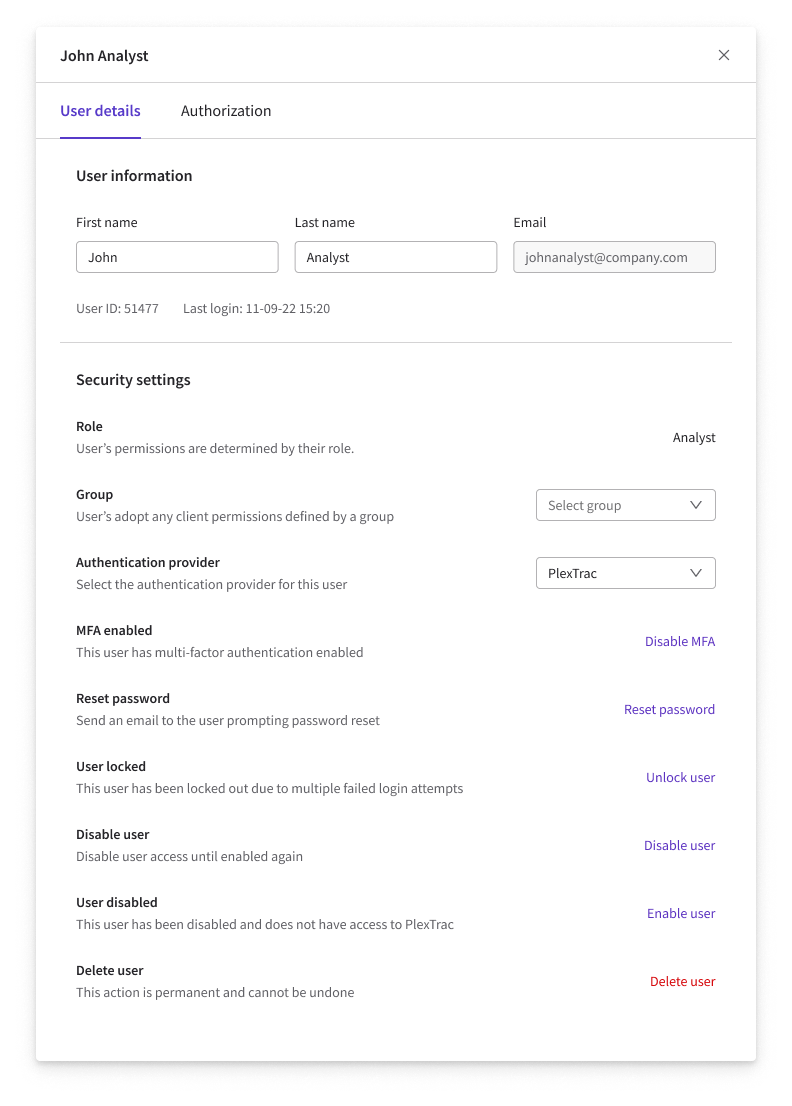
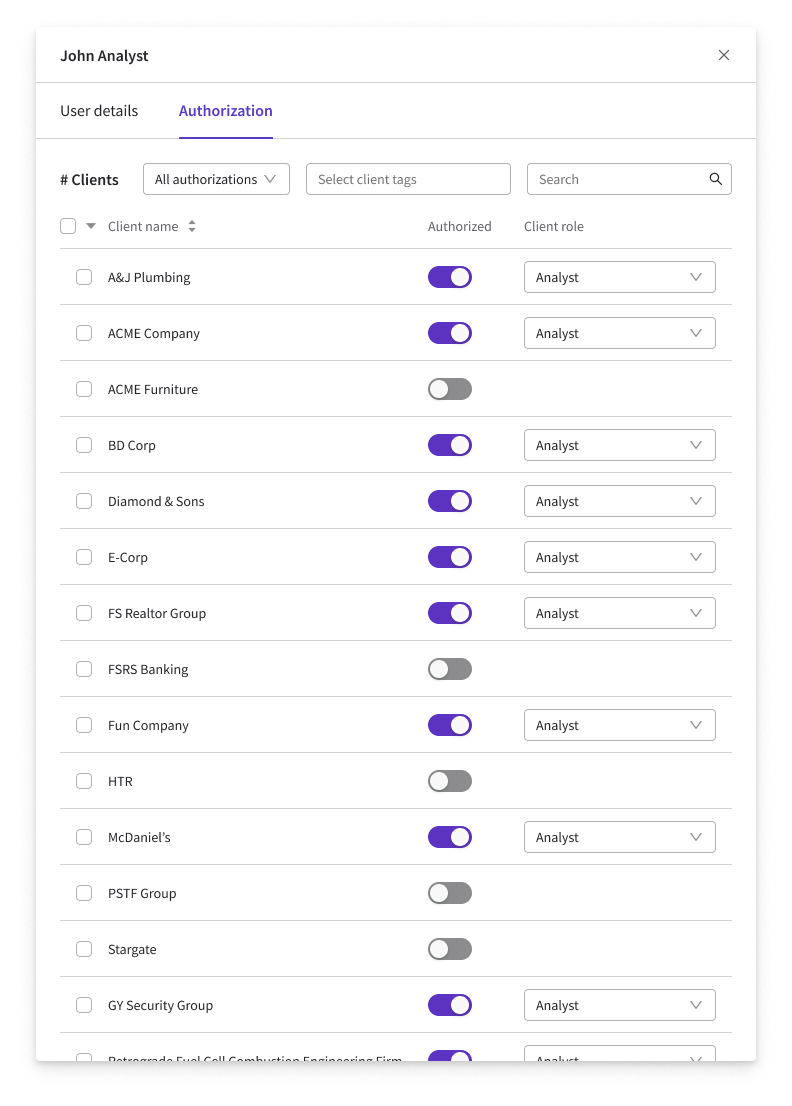
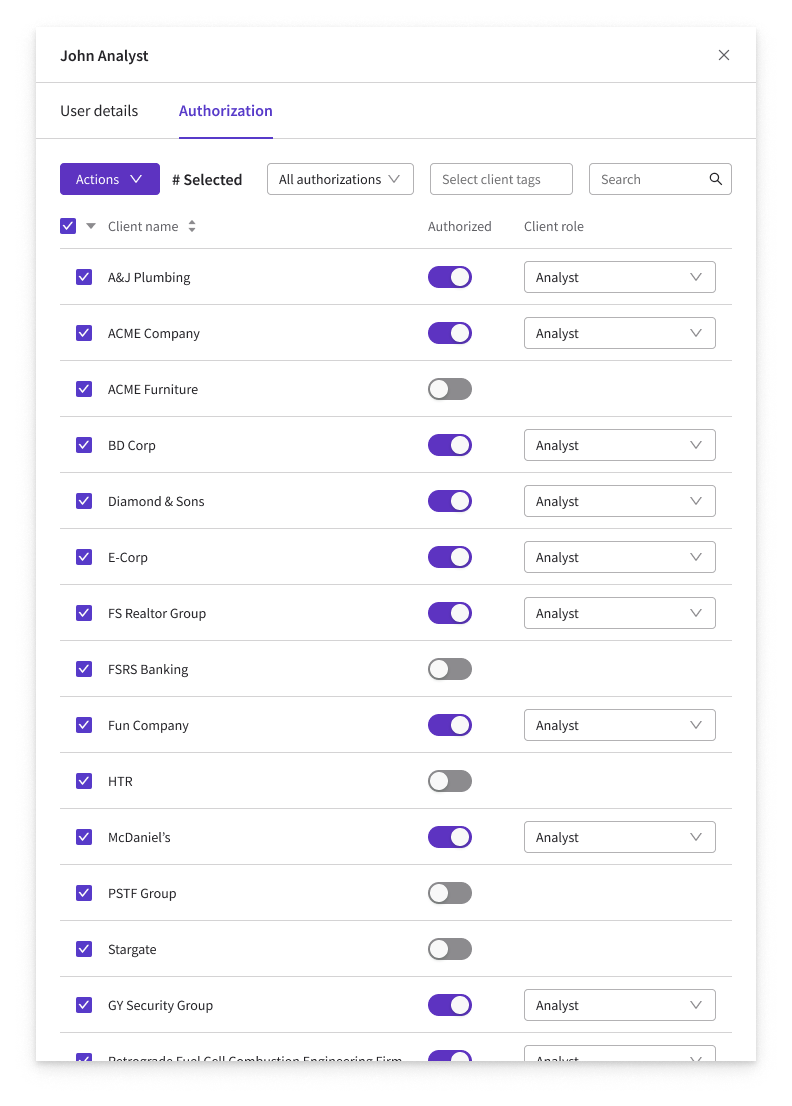
Before this feature, the only way to manage a user's client access was to navigate to each individual client page and add or remove them one at a time. For organizations managing hundreds of clients and users, this was painfully slow and often fell to high-seniority staff because of the sensitivity of the work. This initiative introduced a user details side drawer, accessible directly from the user list, consolidating basic user information and full authorization management in a single place.
Goals
- 01Allow administrators to view and edit user details such as name, email, and settings directly from the user list.
- 02Consolidate all user actions into a single panel accessible without leaving the user list.
- 03Introduce a user-focused authorization workflow, replacing the fragmented client-by-client process.
- 04Support bulk client selection and role assignment from the authorizations tab for large batch authorizations.
User Details Tab
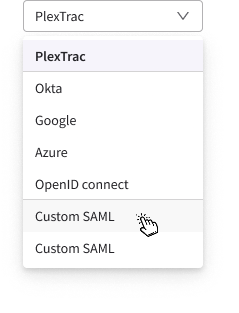
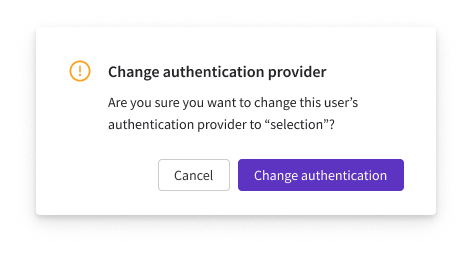
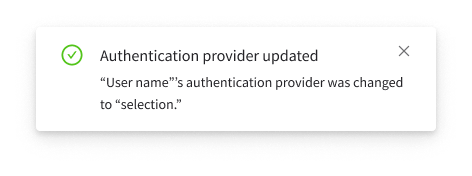
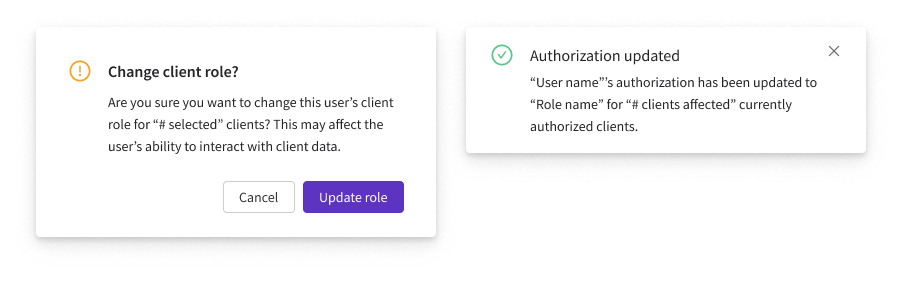
The user details tab pulls everything an administrator might need to do to a single user into one place. The upper section holds basic information such as first name, last name, email, and metadata like user ID and last login, while the lower section gathers every account action that used to live scattered in the actions column: change authentication provider, disable MFA, reset password, unlock, disable or enable, and delete. Consequential actions confirm before they run and report back once they finish. For example, changing a user's authentication provider is shown below, selecting a new provider from the dropdown, confirming the change, and the success notification that follows.
Authorization Tab
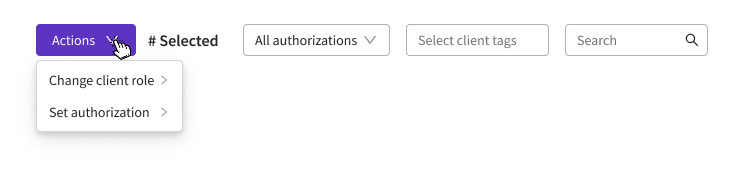
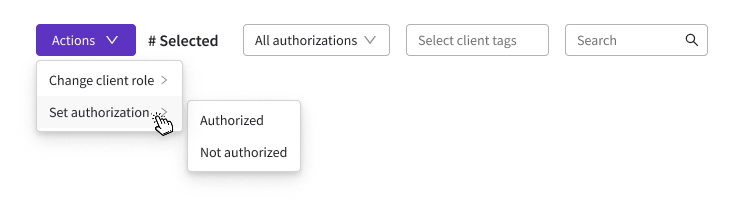
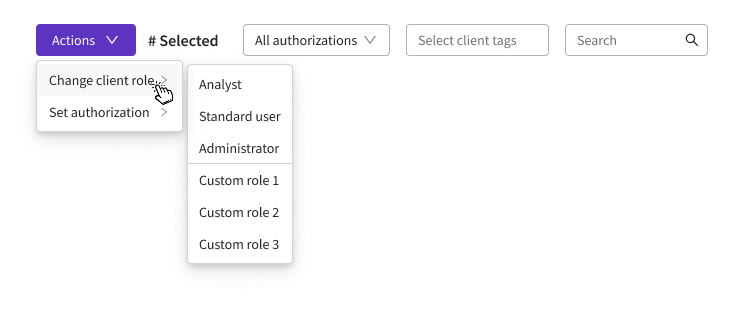
The authorizations tab is where a user's client access lives, every client they can reach and their role for each one. An administrator can select any number of clients at once and change their role in a single action, rather than opening each client one at a time. This flips the whole authorization model from "manage access per client" to "manage access per user." With clients selected, the Actions menu drives the rest. Choose Change client role, pick the new role, confirm, and the update applies to every selected client at once.

Clickable prototype
Below is a functional prototype of the user details and authorization side drawer. Try it out!
Impact & Takeaway
- Replaced client-by-client access process with one user-focused side drawer, all of a user's authorizations in a single place.
- Added confirmations and clear success/failure feedback that admins had said they were missing.
- The real work was rethinking the user-to-client authorization relationship, before the UI itself.
- A side drawer was the right container for that complexity without forcing a full page change allowing users to work down the list.
- Research, journey mapping, interaction design, and prototyping of the drawer and authorization flows.
- This was also a feature that I advocated for to address user frustrations before taking on any net new features.
Bulk user and authorization management for enterprise-scale security teams.
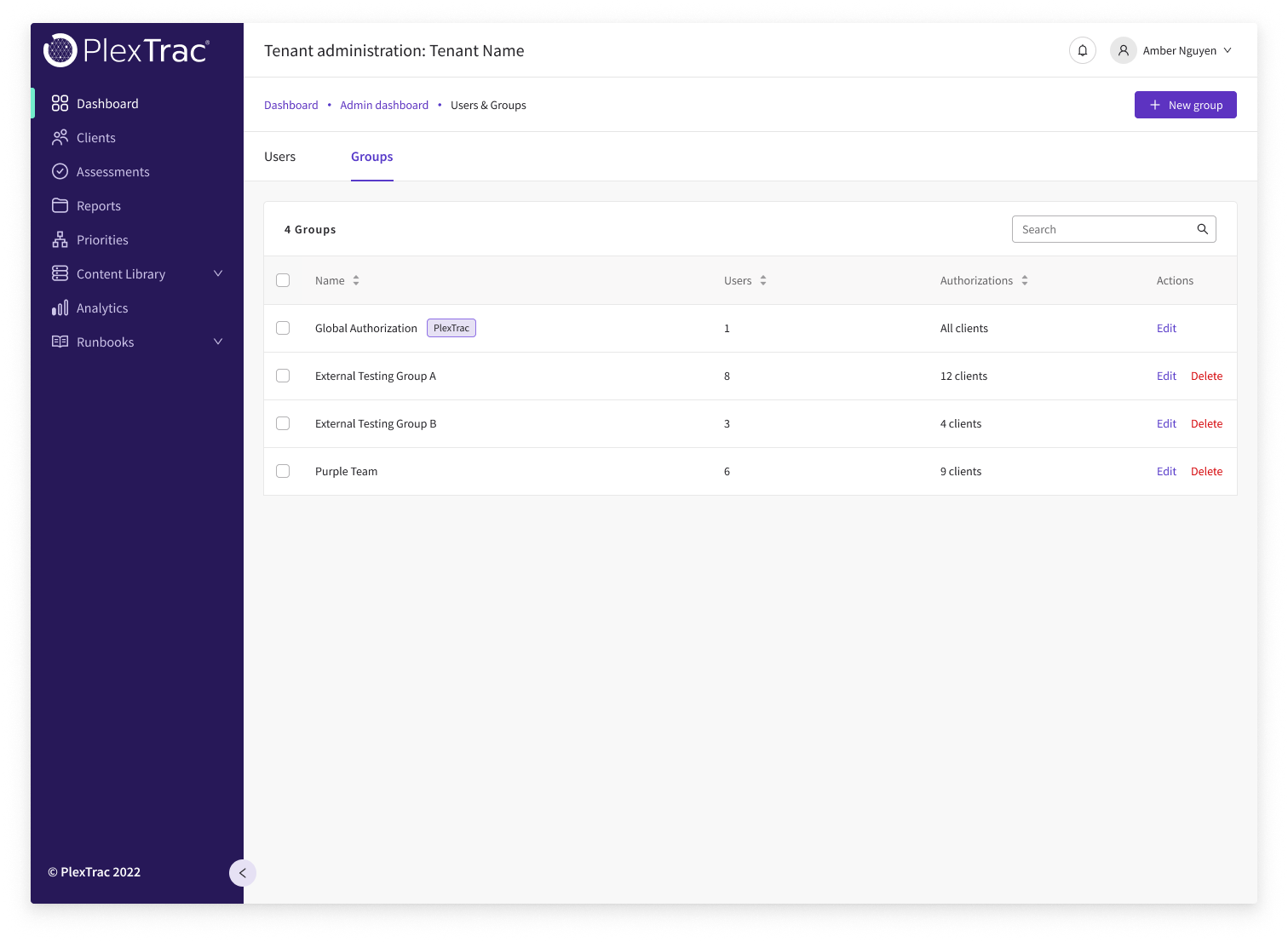
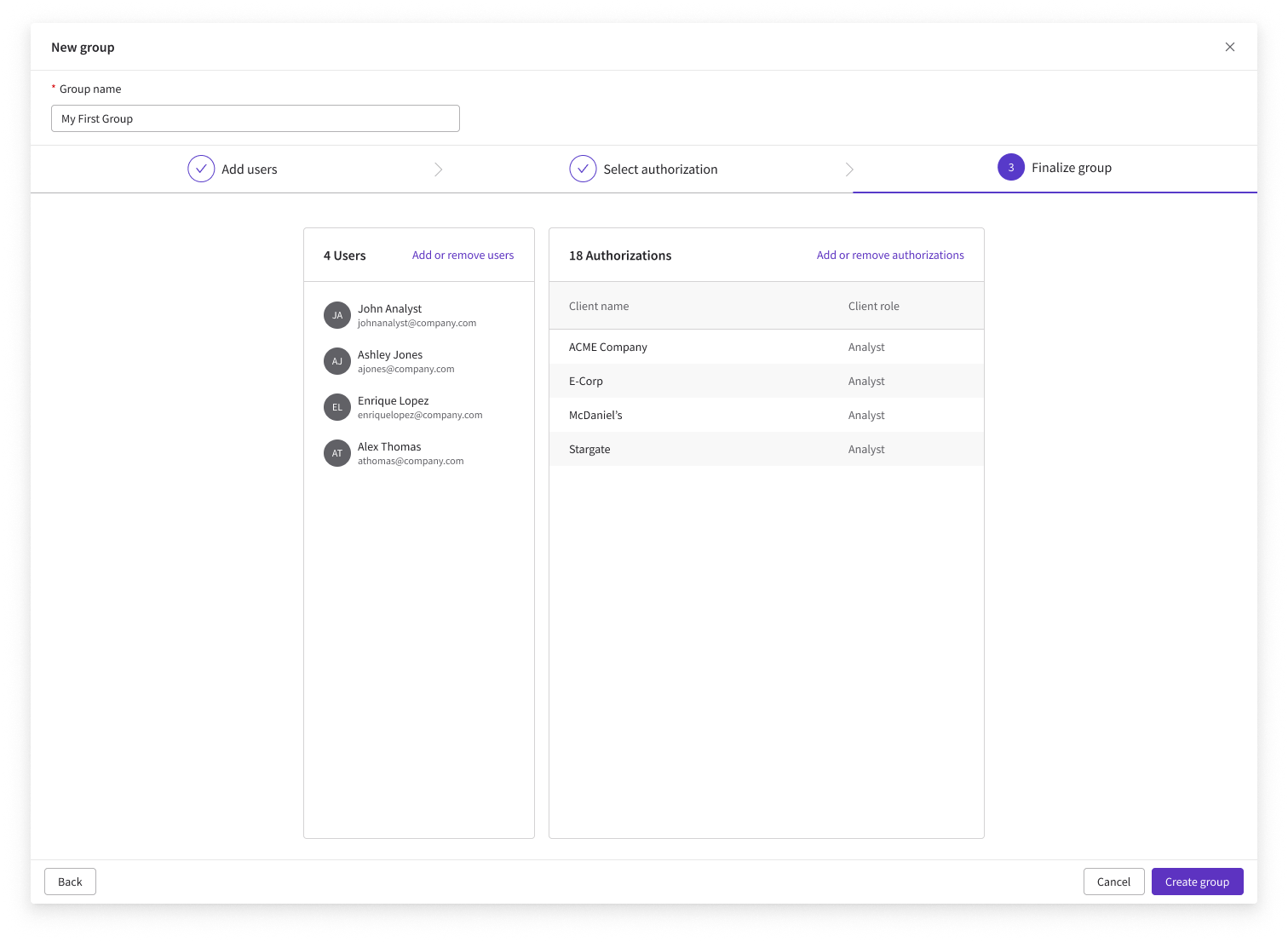
User Groups was the largest net-new feature in the user management project, a long-standing request from enterprise and MSSP customers who needed a way to manage clusters of users collectively. The use case centered on large organizations wanting to group users by division, team, or role, and assign shared client authorizations to the entire group at once. It was designed with a 3-step creation wizard, full group management capabilities, and deep integration with the existing user creation and client authorization workflows with the groups list itself living on a new tab of the expanded Users & Groups page in the Administrator Dashboard.
Goals
- 01Allow administrators to create named user groups and assign client authorizations to the entire group.
- 02Enable users to be added to groups during creation and from the user details side drawer.
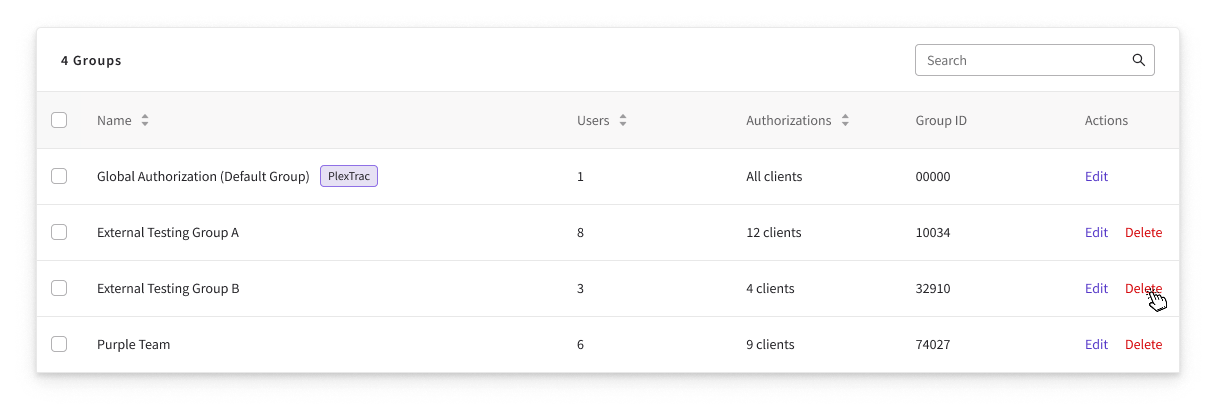
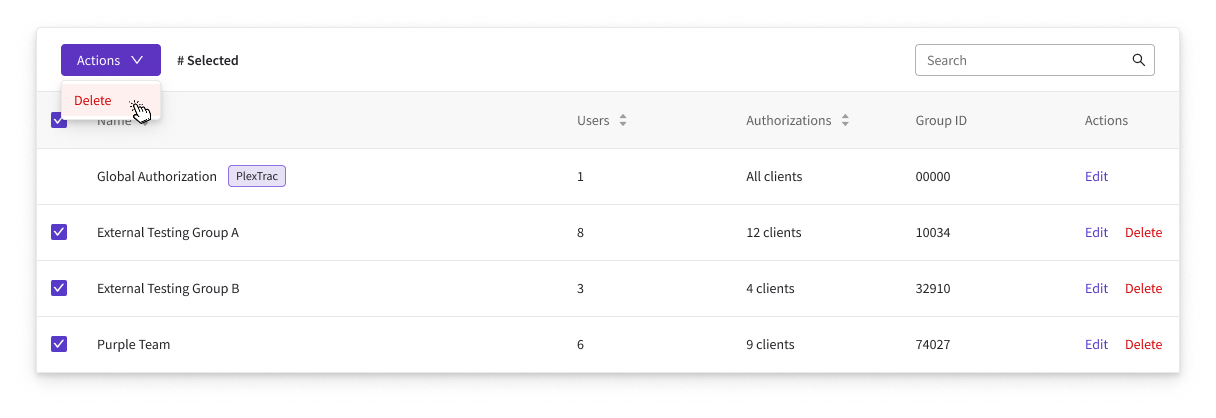
- 03Support editing and deleting groups with bulk action capabilities on the groups list.
- 04Integrate group authorization into the existing client-level authorization workflow as well.
Three Step Creation Wizard
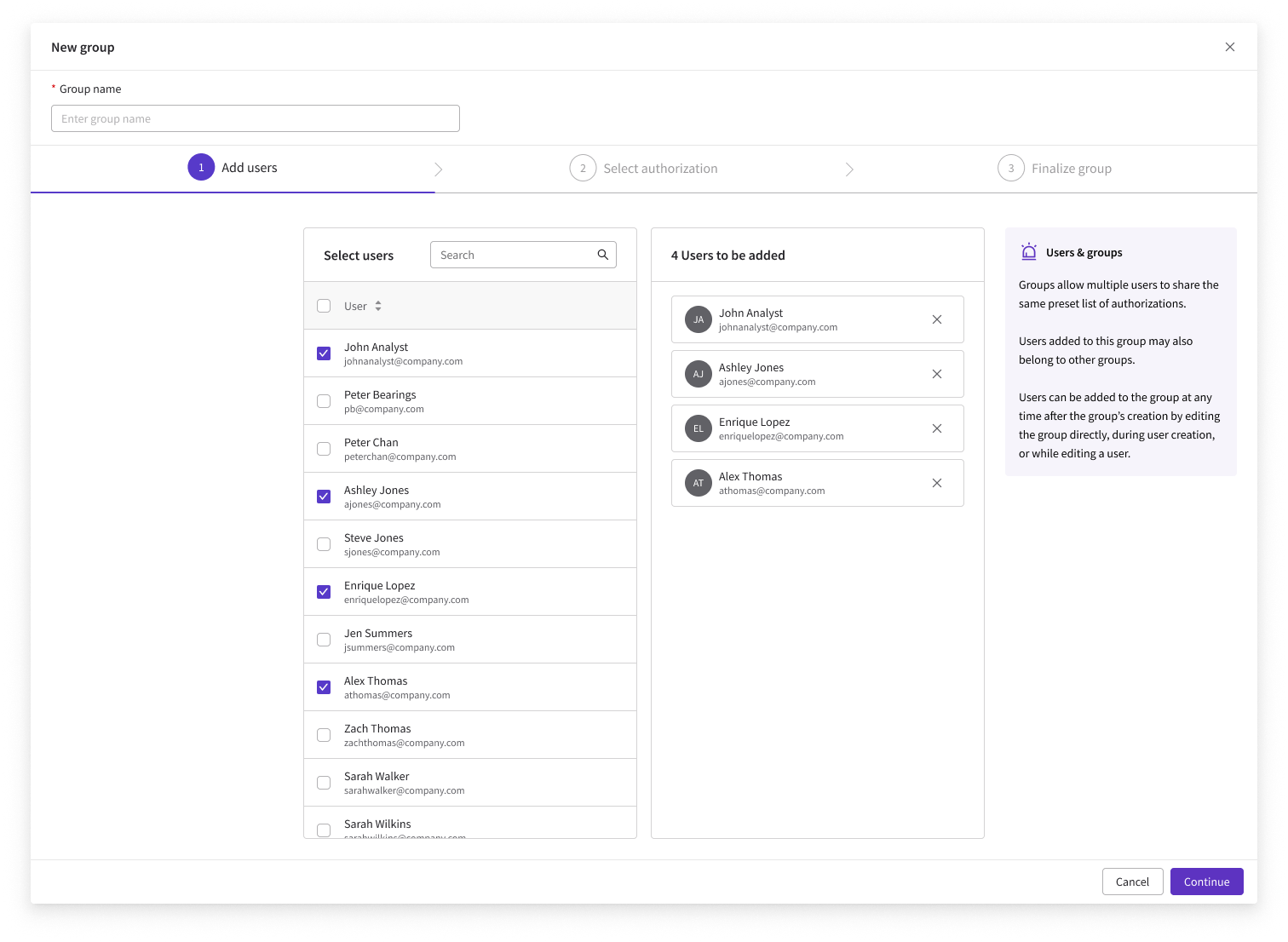
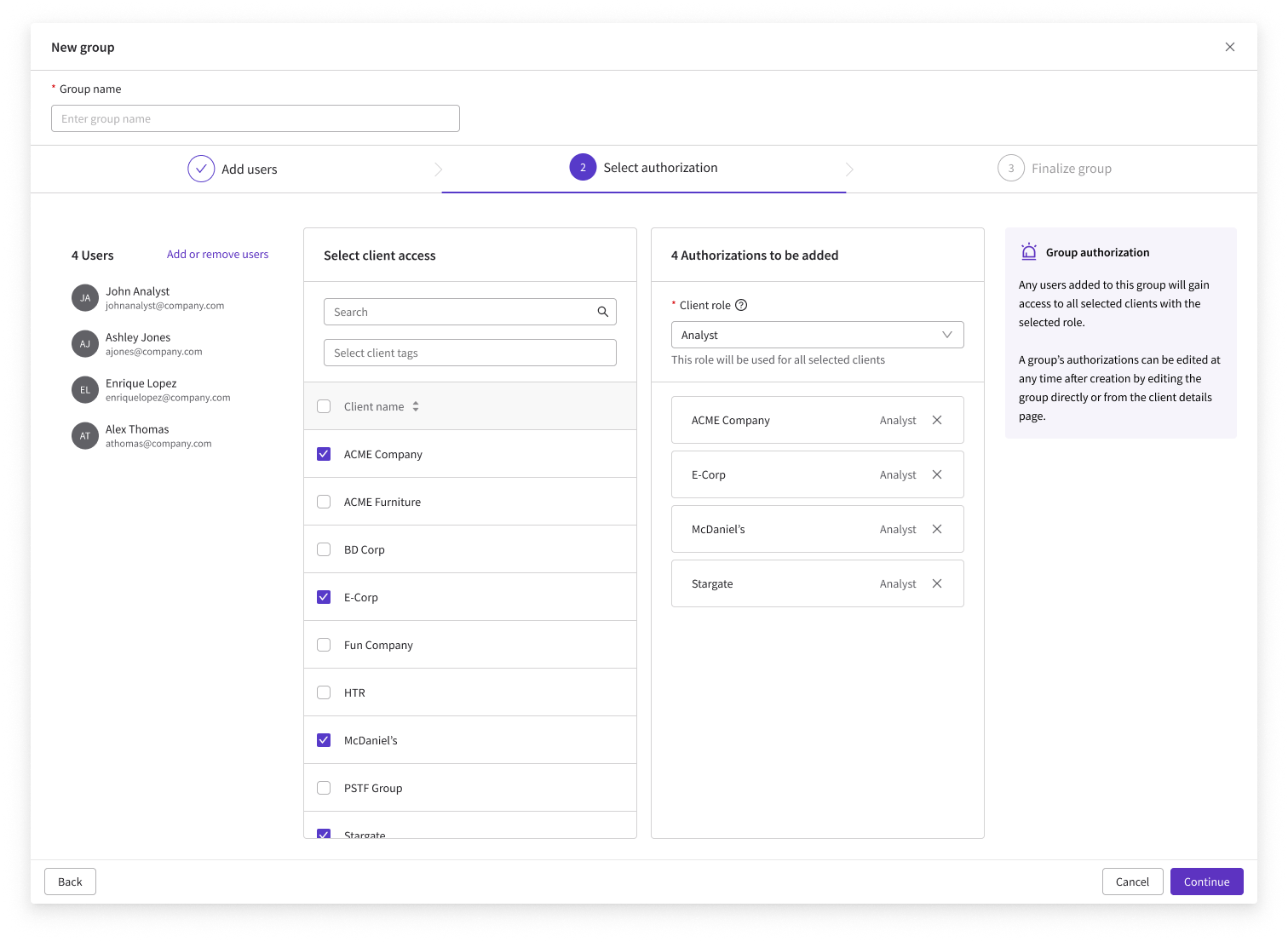
Creating a new group opens a wizard that walks administrators through three steps: adding users, selecting authorizations, and finalizing the group with a name and confirmation.
Group Actions & Integration
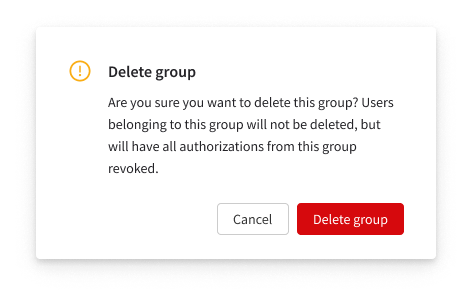
Existing groups can be edited or deleted from the groups list, with bulk selection and deletion supported. Users can also be added to a group from their user details side drawer, and from the client details page, administrators can now authorize users or groups together in a single updated workflow.
Clickable prototype
Below is a functional prototype of the user groups creation and management flow. Try it out!
Impact & Takeaway
- Delivered the most-requested enterprise and MSSP feature, authorizing whole groups instead of one user at a time.
- Integrated groups into the existing user-creation and client-authorization flows so it felt native.
- The guided wizard offers a 3 step flow to batch automate a task that would used to have to be applied to each user individually.
- Keeping one feature consistent across many entry points was the central design challenge.
- Research, prototyping, and design of user groups page and interactive components.
- Collaborating with company veterans to work out how to integrate user groups with the existing RBAC and authorization system.
A security-focused activity log for administrator oversight at scale.
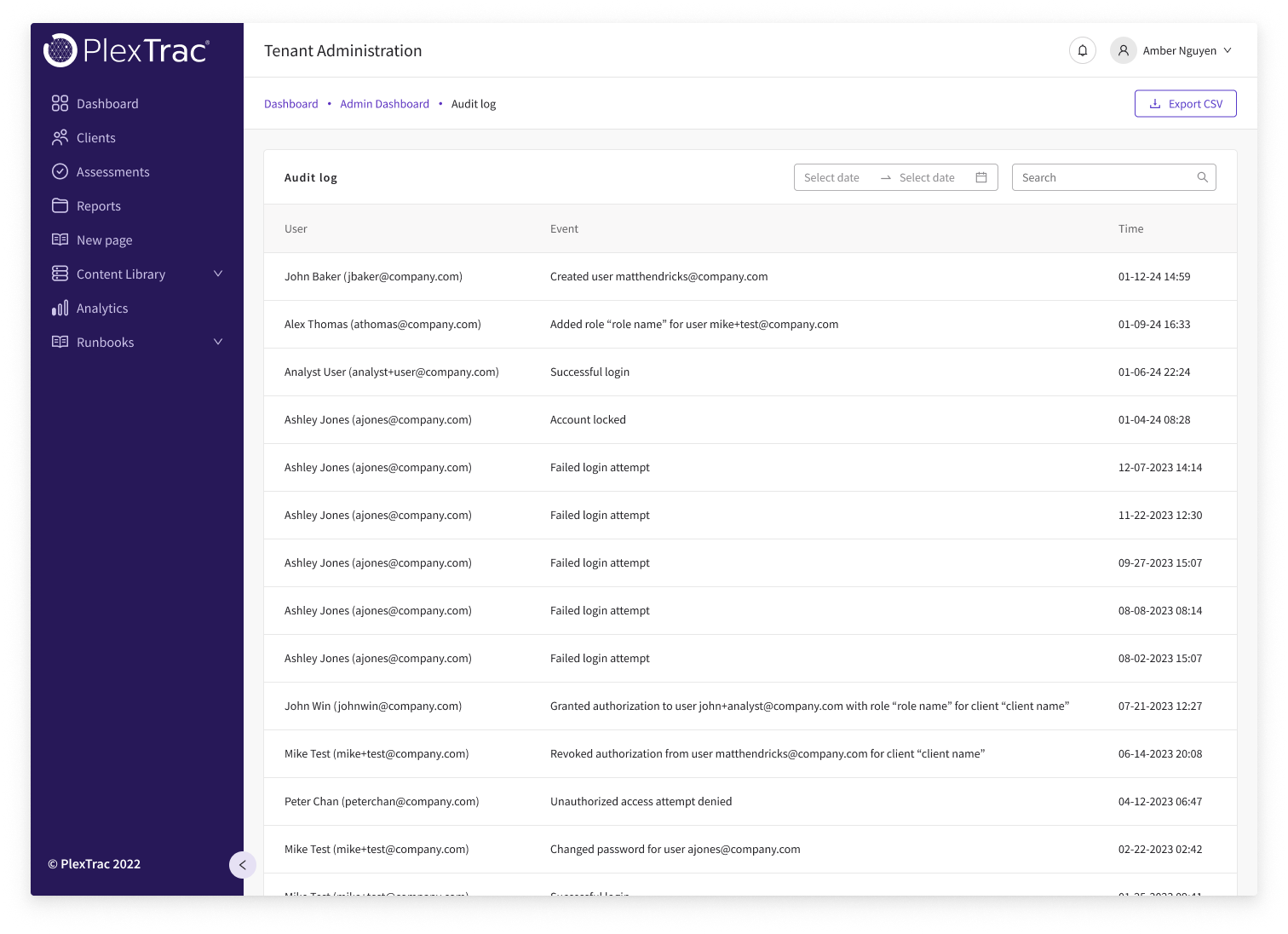
As PlexTrac's enterprise client base grew, the need for a dedicated audit log became a compliance and security obligation. This was a net new feature designed in multiple phases starting with an MVP focused on security-related user actions, followed by a fast follow for robust filtering, search, and export, with future phases planned for expanded event tracking.
Goals
- 01Provide administrators with a clear, searchable log of security-relevant user actions.
- 02Support date-range filtering and keyword search to narrow results during audits or investigations.
- 03Enable CSV export of filtered log data for external reporting and compliance use cases.
- 04Establish a scalable foundation for expanding event tracking in future phases.
Event Tracking
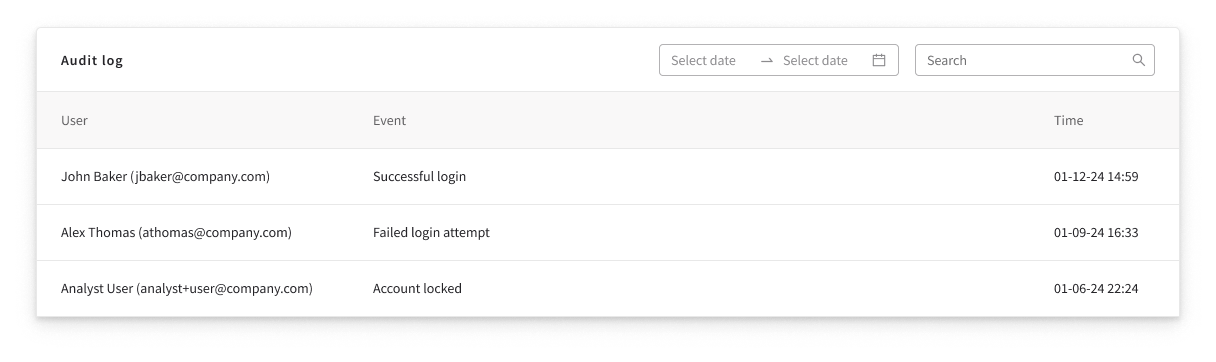
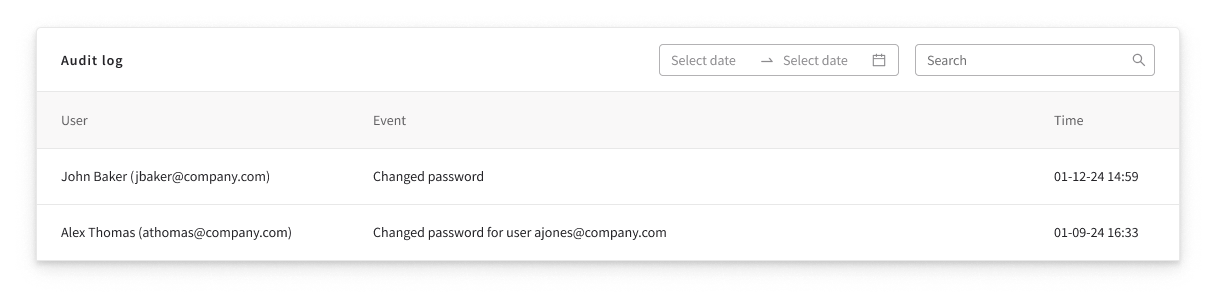
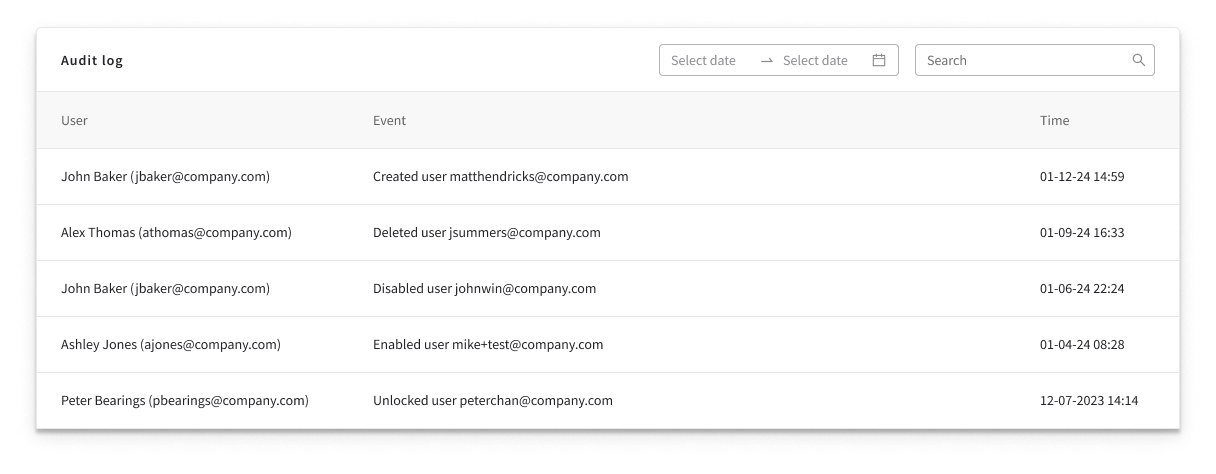
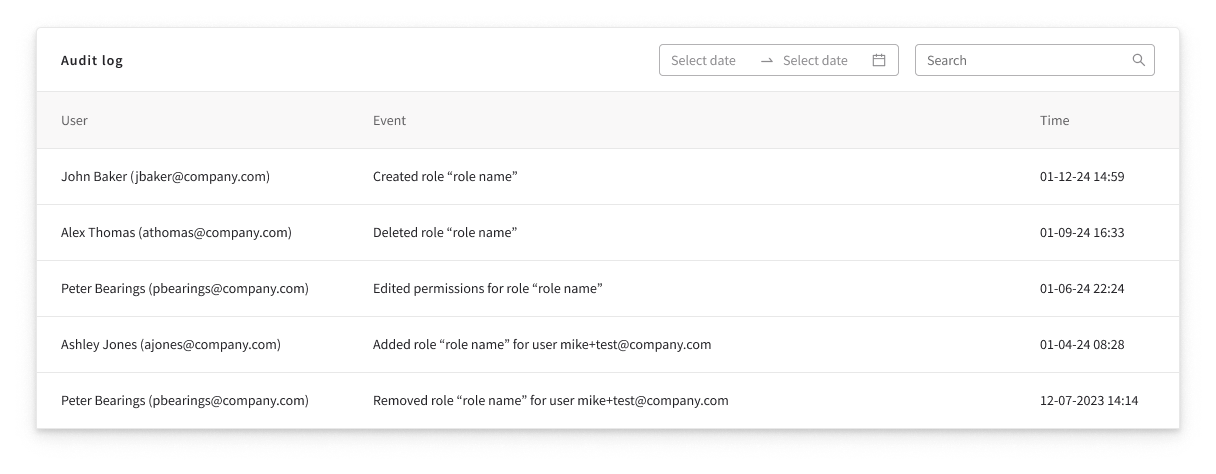
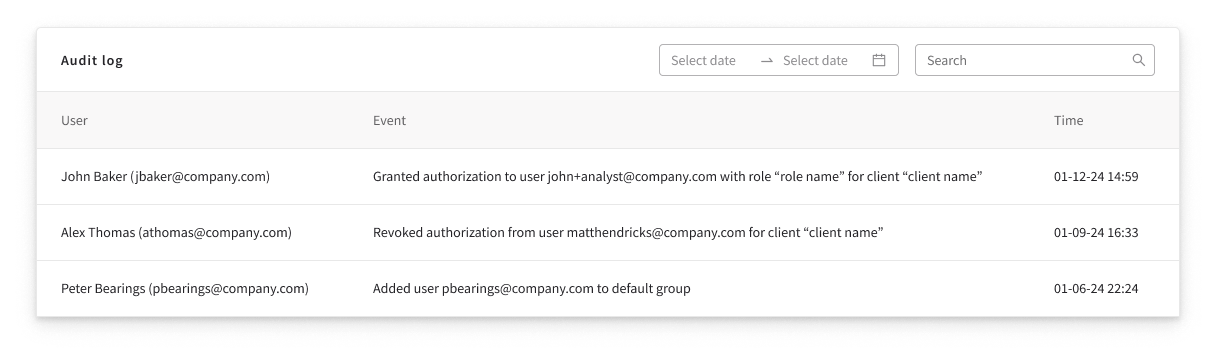
The MVP audit log tracks five categories of security-relevant events: login attempts and related activity, password change events, user account actions (create, disable, delete, unlock), roles-based access and permissions changes, and authorization events. Each entry surfaces the user's identifier, the event type, and a timestamp.
Filter & Search
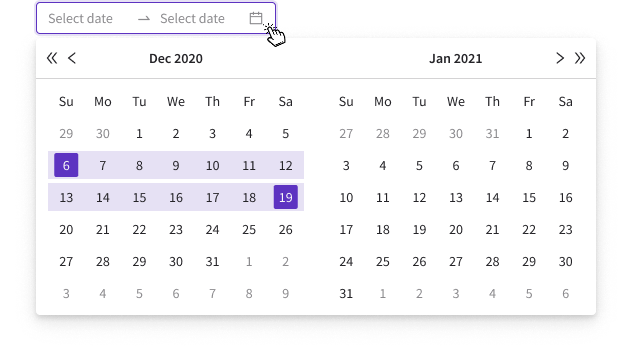
The audit log can be filtered by date range, showing only events between two selected dates. This compounds with a search bar that filters by user name, email, or specific event type, letting administrators drill down precisely during any audit or security investigation.
CSV Export
Data in the audit log is archived to an external database after 90 days. For data still within the active window, administrators can export the current filtered results as a CSV scoped exactly to whatever date range and search criteria are active at the time of export.

Impact & Takeaway
- Shipped the platform's first security audit log, closing a compliance gap before it became a blocker for enterprise buyers.
- Phased delivery of security events first, with filtering, search, and CSV export as a fast follow.
- For a feature admins hope to never need, clarity and scannability mattered more than any single interaction.
- Designed proactively, ahead of explicit requests and before real issues arose.
- Collaboration with security and legal teams to identify initial feature requirements.
- All wireframe and prototyping on net new audit log feature page and components.
Let's make something worth making.
Have a project or role in mind? I'd love to hear from you.